The Sync Entra Groups solution provides a simple way for your customers to sync groups from their Microsoft tenant over to DeskDirector. This allows you to reduce the admin overhead required in maintaining your Contact Groups in DeskDirector and also means you can have your users automatically change groups in DeskDirector based on the dynamic groups you have set up in your Microsoft tenant.
Each of your CustOrgs will have an app where they can manage which groups sync.
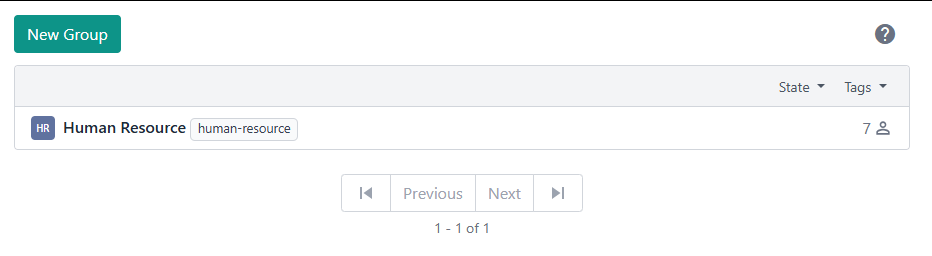
Your groups will sync over daily, and after syncing, you'll be able to see and edit them in DeskDirector. For example, in the screenshot below, we've set up a group for Human Resources and enabled it in the Sync Entra Groups app. After syncing, we can see that it has successfully synced over 7 users and created the group as needed:
Managing Synced Users
Configure Syncing
To get set up with syncing, first, you'll need to request syncing for one of your CustOrgs. As part of the Sync Entra Groups deployment, a Sync User Group service type has been created in your DeskDirector instance:
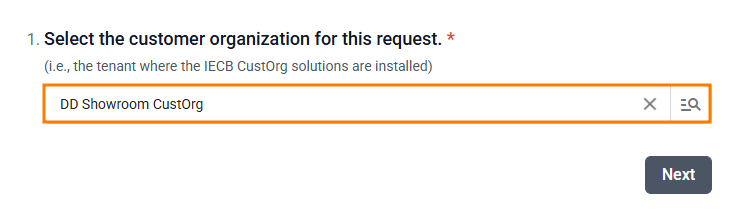
When creating a request, you'll want to select your organisation:
Select your Sync Mode: Your available sync mode options are:
Mode
Description
Sync contacts only
Synchronises Entra group users as contacts under the requestor’s account without assigning them to any contact group or service group.
Add contacts to contact group
Adds the synchronised contacts to the corresponding Contact Group. (Note: Contact Group/s will be automatically created based on Entra group name/s.)
Link service group to contacts
Links the synchronised contacts to a Service Group. (Important: Ensure that the Service Group/s with the same name as the Entra group/s already exist before running the sync.)
Sync Entra groups as Accounts
Synchronises Entra groups as DeskDirector accounts. (Important: Make sure the Account/s with the same name as the Entra group/s already exist before running the sync.)
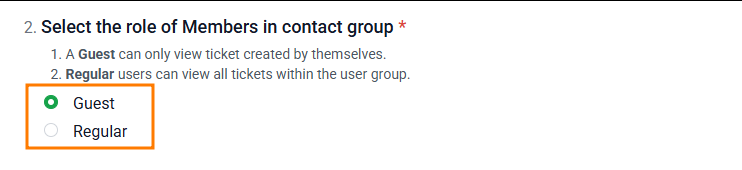
Select the role of members in the group:Members will be synced over based on the groups' members in your Microsoft tenant. The groups' owners will be synced over as managers of their respective contact groups in DeskDirector.
Confirm that you want the sync setup to go ahead:
This service type can be renamed and moved if desired.
Managed your Sync Groups
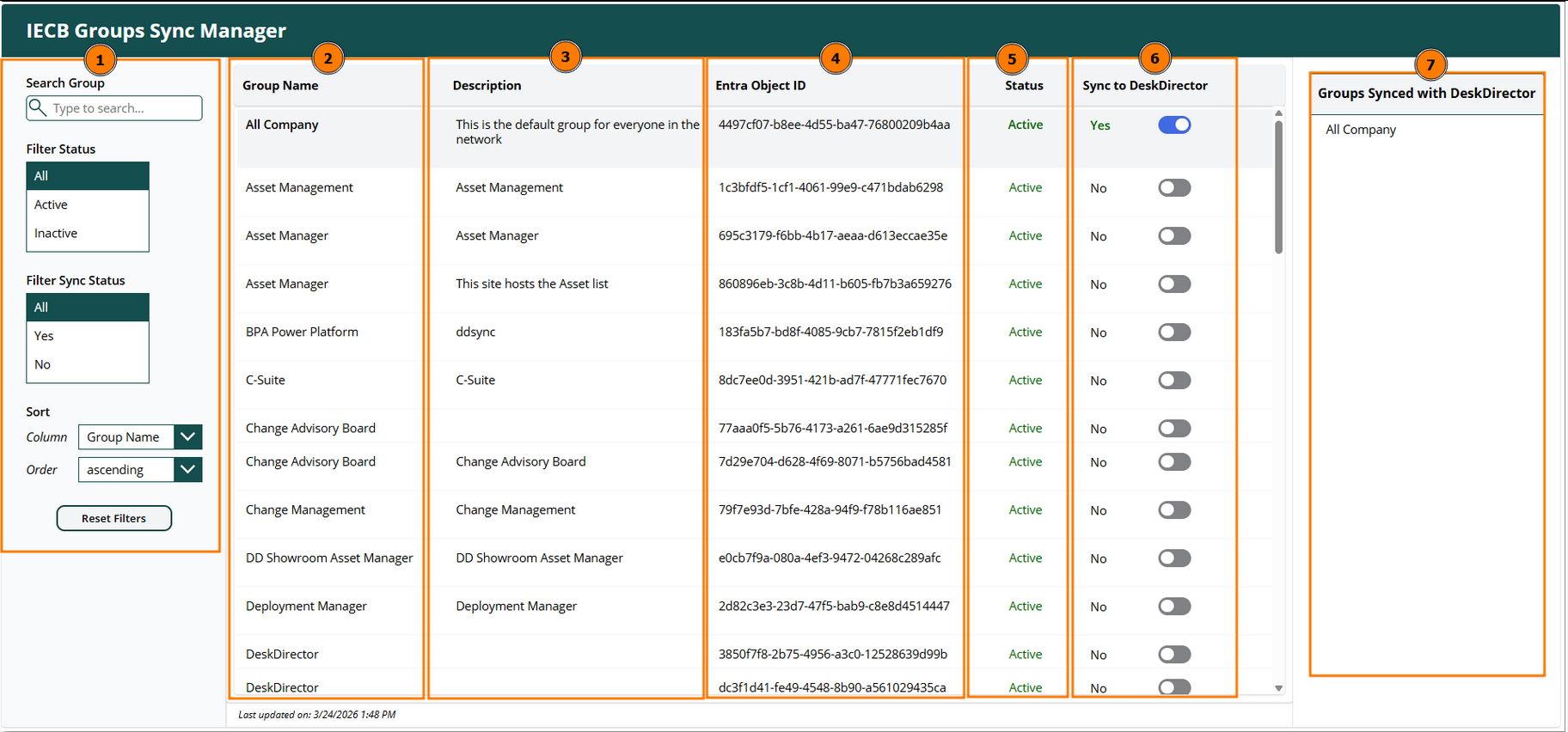
Each of your CustOrgs has a PowerApps app available to them where they can manage which groups sync. Within the app, they'll have a few sections:
You can filter for groups in your Microsoft tenant by those that are active, based on their sync status, or by directly searching. You can also change the sort order if desired.
You can see the name for each group
You can see the description for each group
You can see each group's Entra object ID
You can see whether each group is active in your Microsoft 365 tenant
You can see whether each group is actively syncing to DeskDirector (and toggle its sync status)
Lastly, you can see which of your groups are already syncing to DeskDirector.
 Updated
by Niamh Ferns
Updated
by Niamh Ferns