Table of Contents
HR Joiners - Quick Start
 Updated
by Niamh Ferns
Updated
by Niamh Ferns
Summary
The HR Joiners solution provides an out-of-the-box way for you to automate your user onboarding process. As part of the automated onboarding process, fan-out tickets will be created for different people on your team to action, and you'll be able to review the current progress of your onboarding requests through an easy-to-use app.
Usage Guide
Requesting an Onboarding
As part of the HR Joiners solution, you'll have had a service type created in your DeskDirector instance:
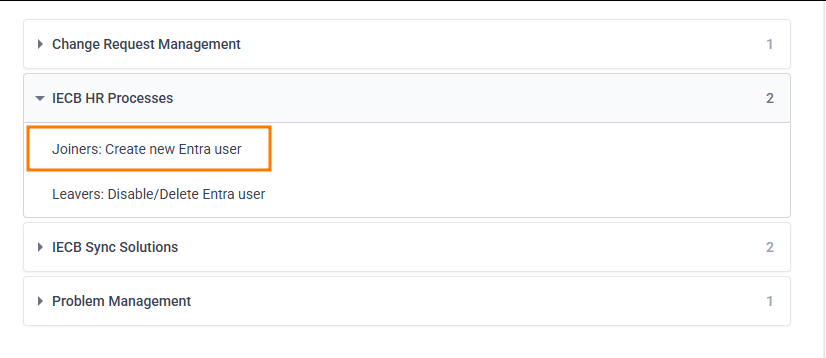
This service type will guide you through filling out all the various details needed to onboard a user:
- Select Account: This will be the CustOrg you are performing an onboarding for
- Domain: This will be your DeskDirector domain
- Account Details: You'll be prompted to fill in various details about the user's account, like whether it should be enabled, how their UPN should be derived, what their display name should be, etc.
- Role Specifics: You'll be prompted to fill in details related to their role. You can select which pieces of job information are relevant to a user, as not all will be needed in all situations.
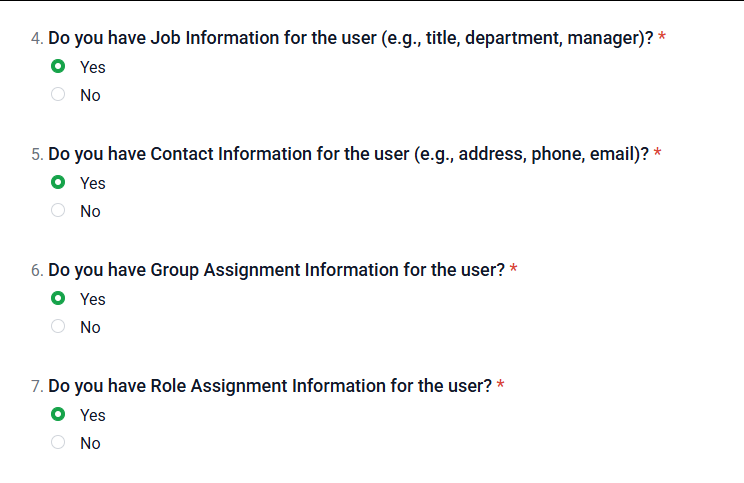
- Job Information: Details related to their job itself, like their hire date, office location, employee ID, etc.
- Contact Information: Contact details for the employee, like their address and phone number.
- Group Assignments: These are the groups they should be assigned to in Entra. (Note, you'll be able to see a list of the groups for your convenience.)
- Role Assignments: These are the roles they should be assigned in Entra. These determine what level of access a user may have within an organisation's Entra environment.
Once the ticket has been submitted, the onboarding will begin.
HR Joiners App
The HR Joiners app provides an overview of your onboarding requests. You'll be able to see your ongoing, completed, queued, and cancelled onboardings.
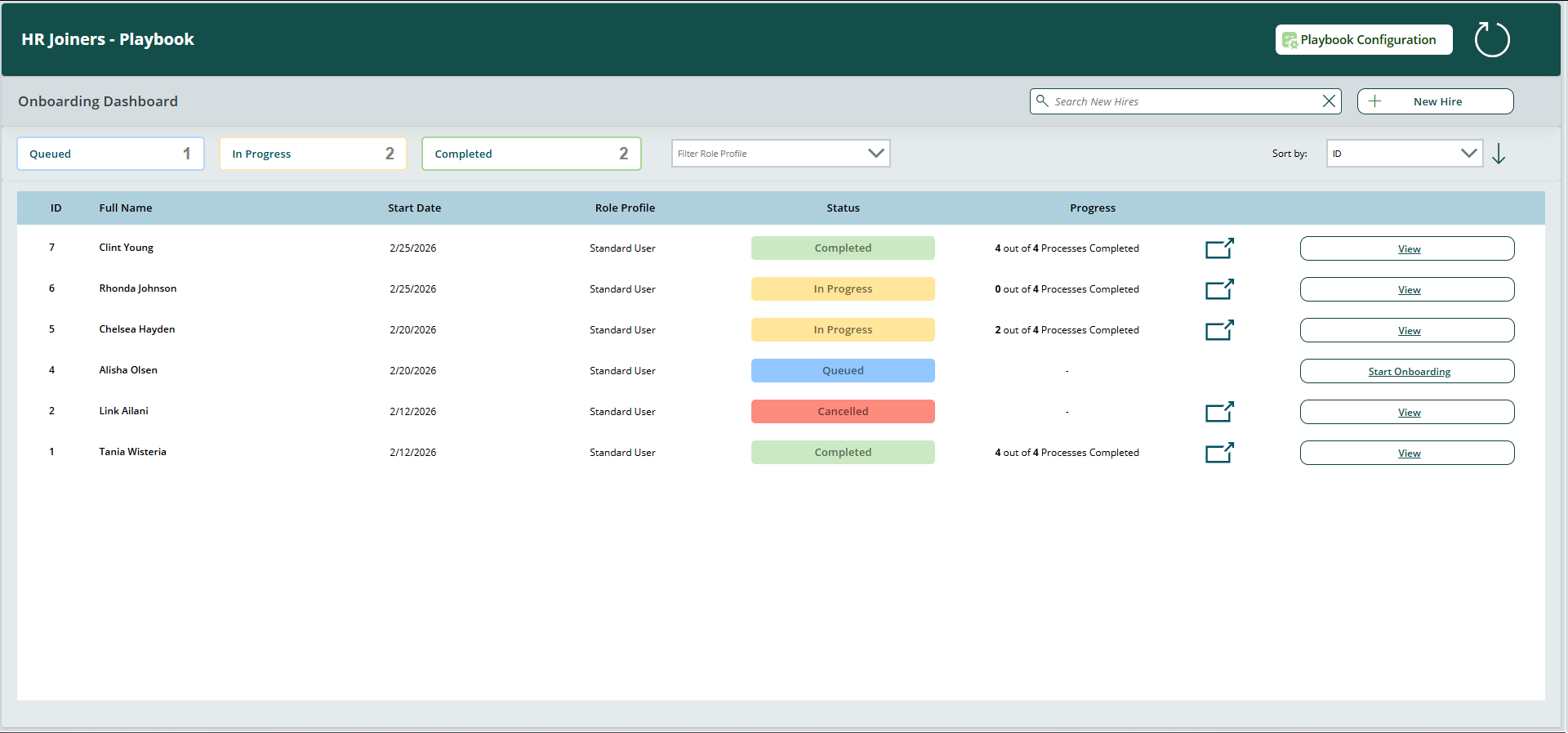
Here you can view and filter for your existing onboarding requests, interact with those onboarding requests, or create a new hire record if desired.
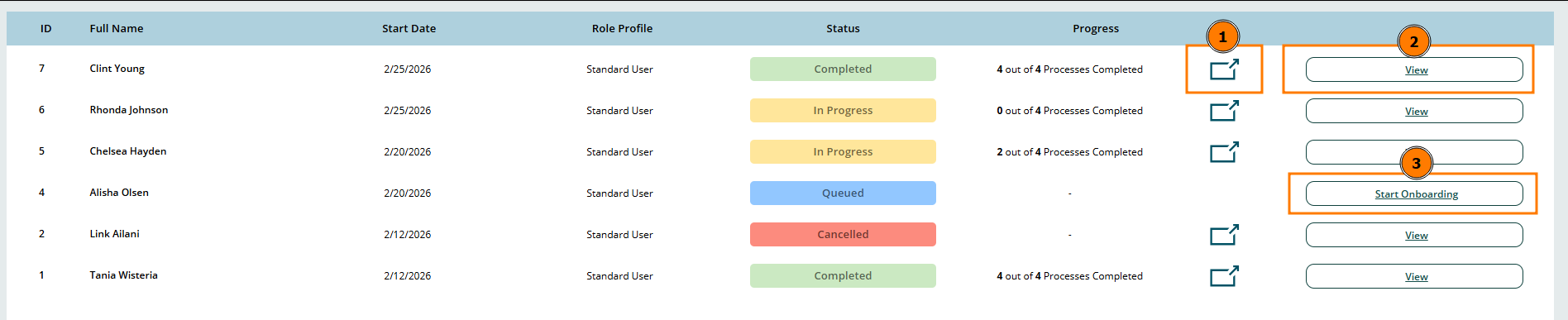
1. Onboarding Progress View:
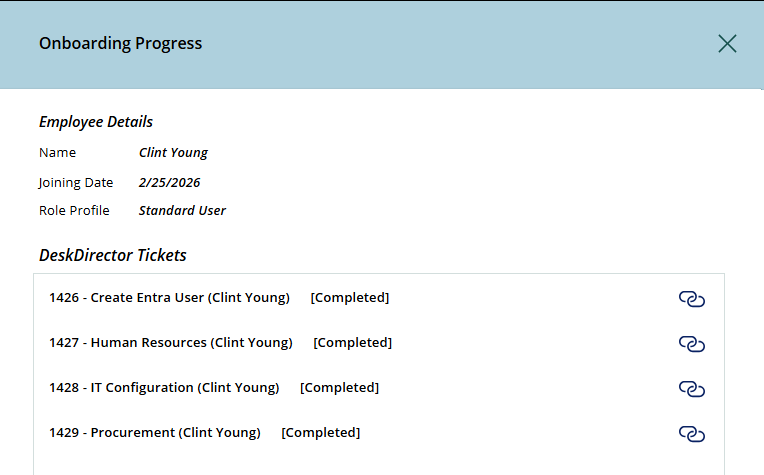
The onboarding progress view provides you with details about an ongoing onboarding request. You can see a summary of the employee's details and view the individually fan-out tickets that are related to their onboarding and their respective statuses.
2. New Hire Details View:
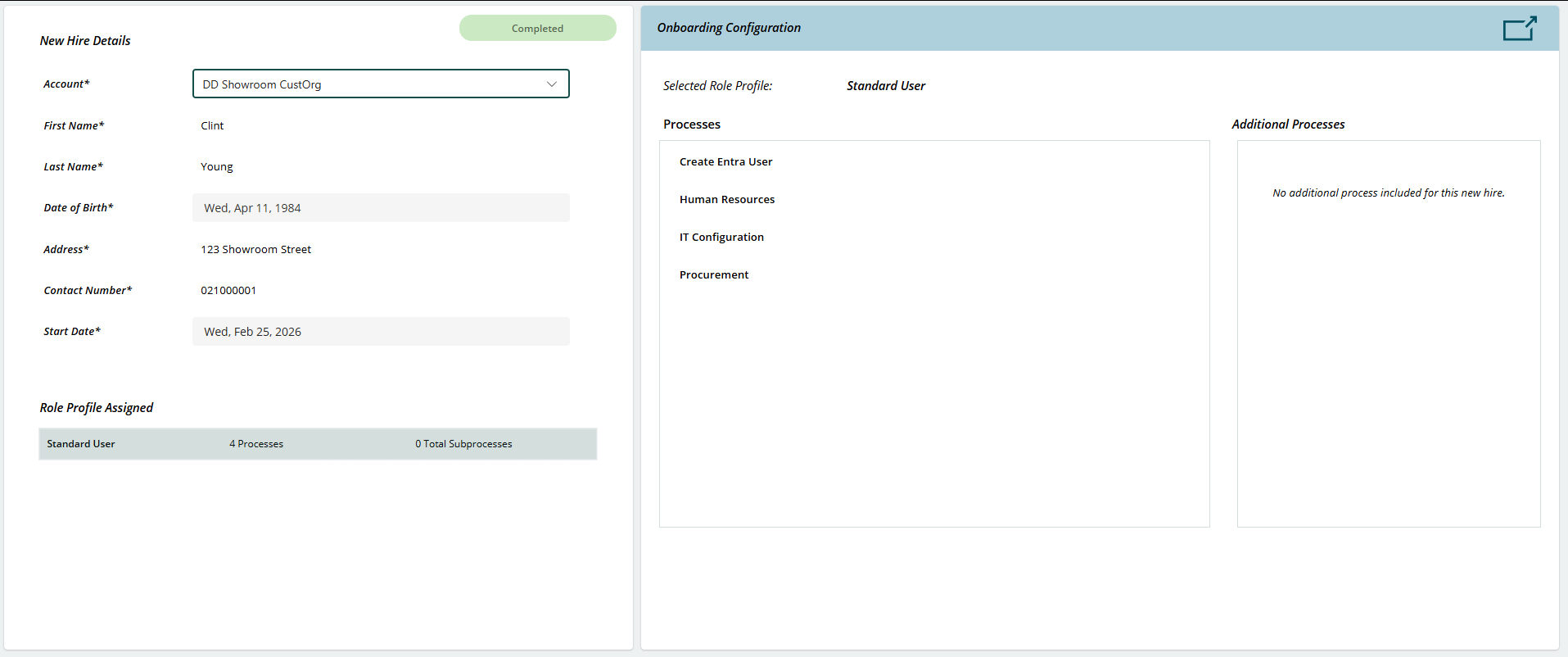
The new hire details view provides you with all the information related to a new hire. Their onboarding details, contact details, and the processes that will be carried out as part of their onboarding.
3. Start Onboarding:
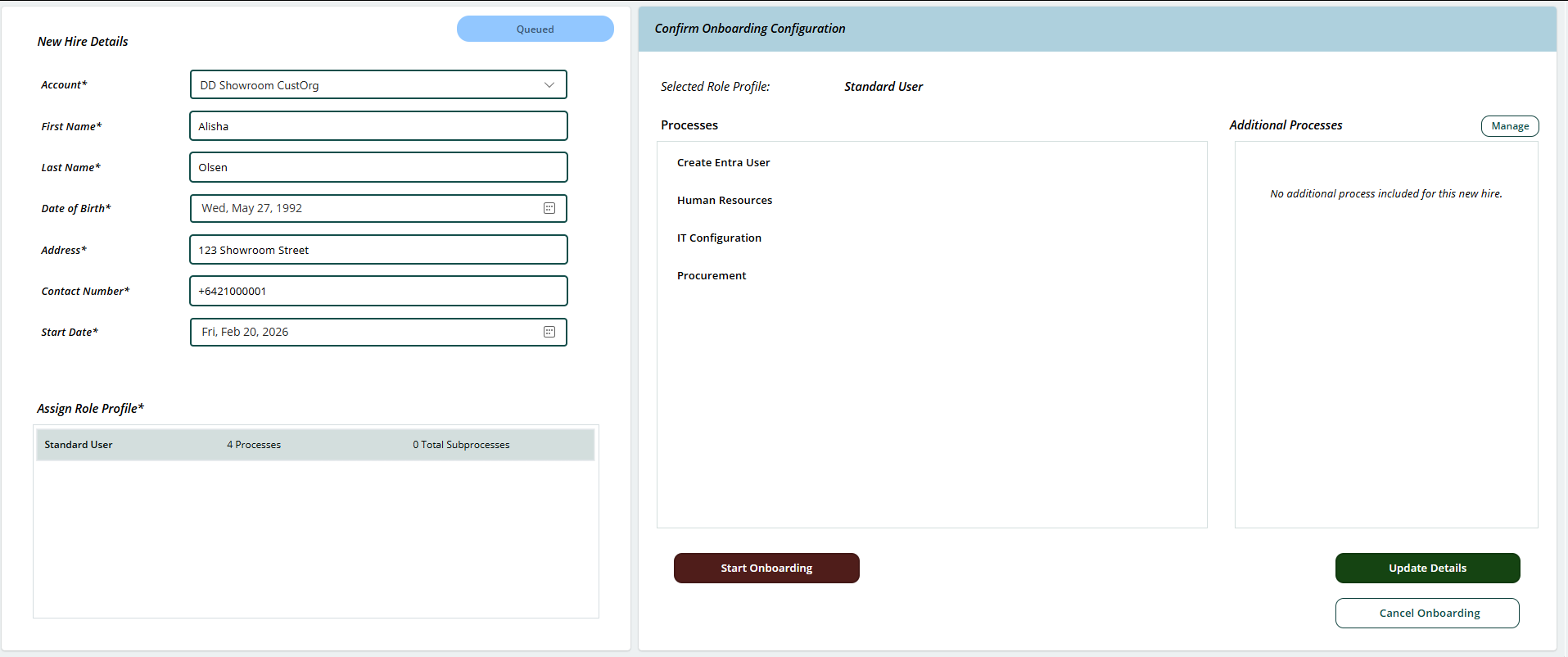
When viewing the user details related to a new user that hasn't started their onboarding, you'll have the option to either update their details, start the onboarding, or cancel the offboarding if the employee is no longer joining your organisation.
If desired, you can also start a new hire directly from the app:
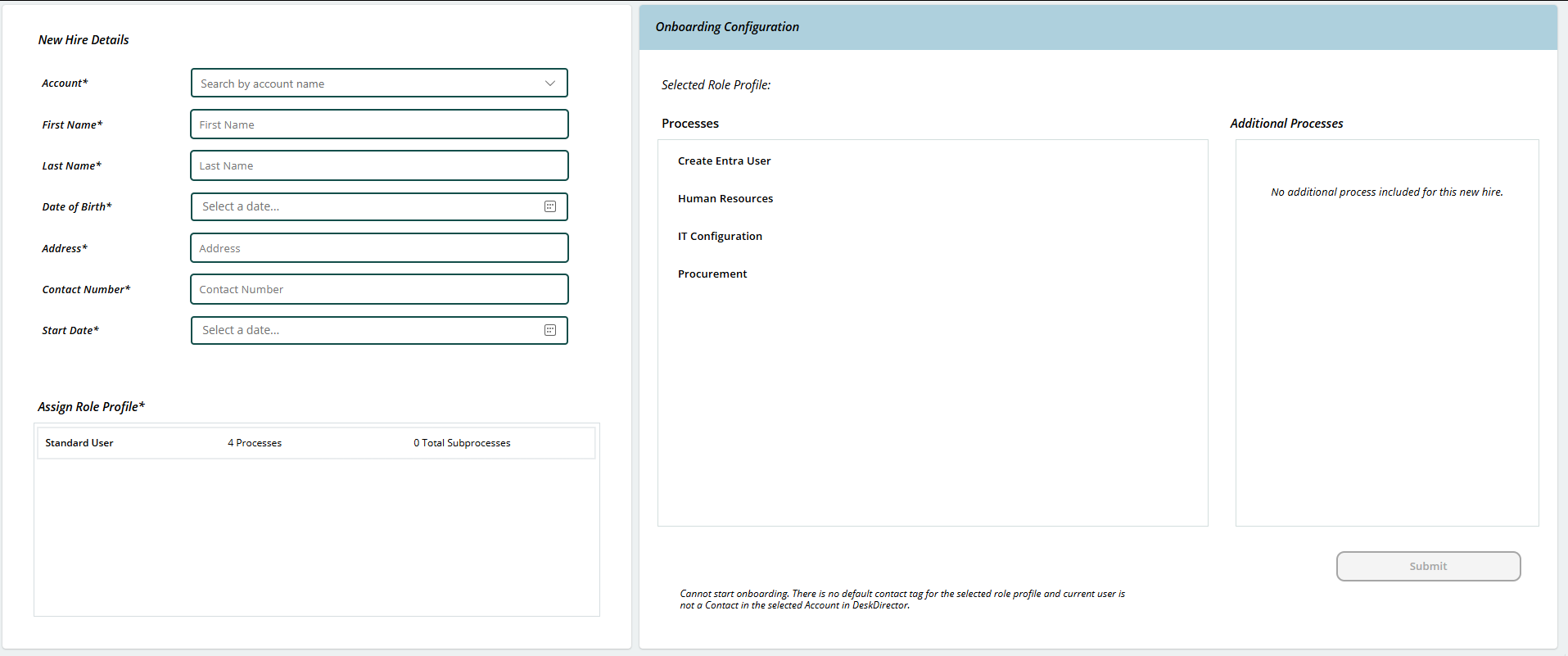
Playbook Configuration
As part of the provisioning for your HR Joiners solution, you'll have added your playbook in the Service Orchestrator. To view this:
- Open the Service Orchestrator application
- Select HR Joiners
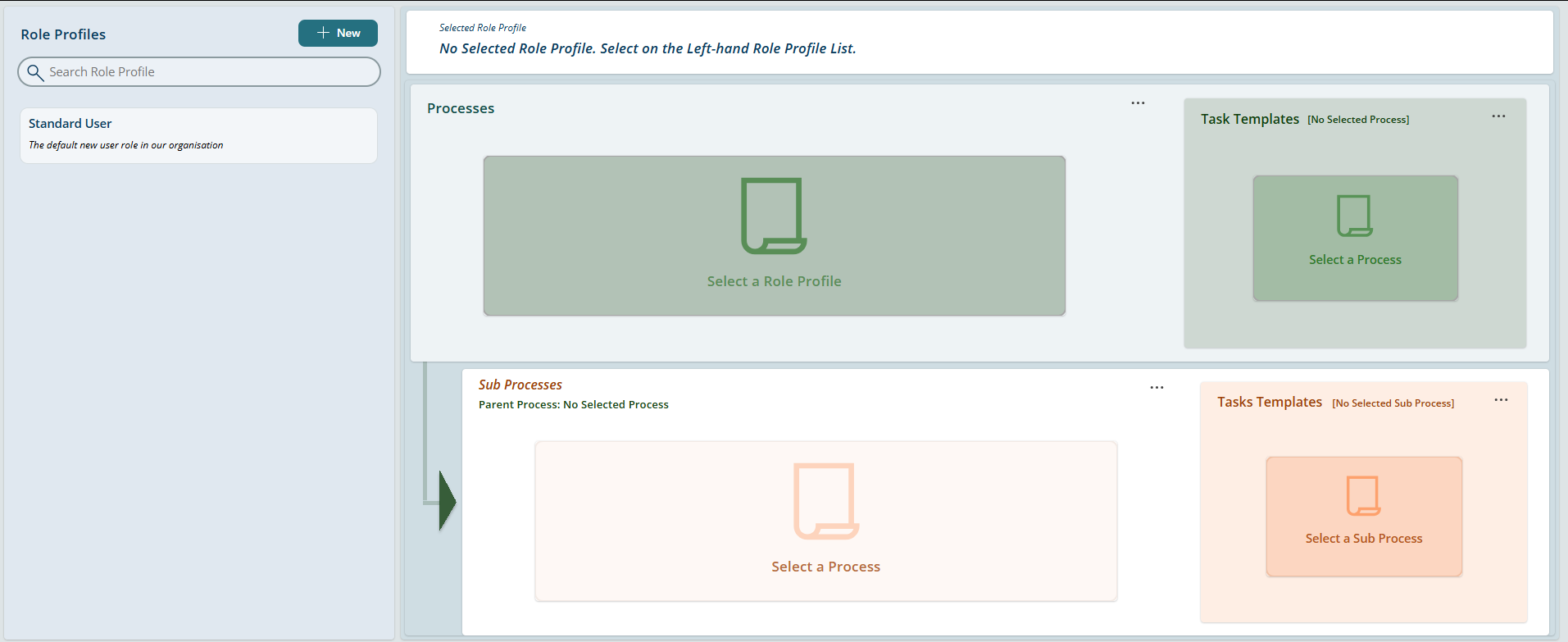
From here you can:
- Create new role profiles
- Edit your existing role profiles
- Add task templates
- Define processes and sub-processes
When you have organisations you support, this comes in particularly useful as it gives you control over the actual processes involved in users' onboarding requests.
To create a new role profile, select new. Alternatively, select an already existing profile on the left.
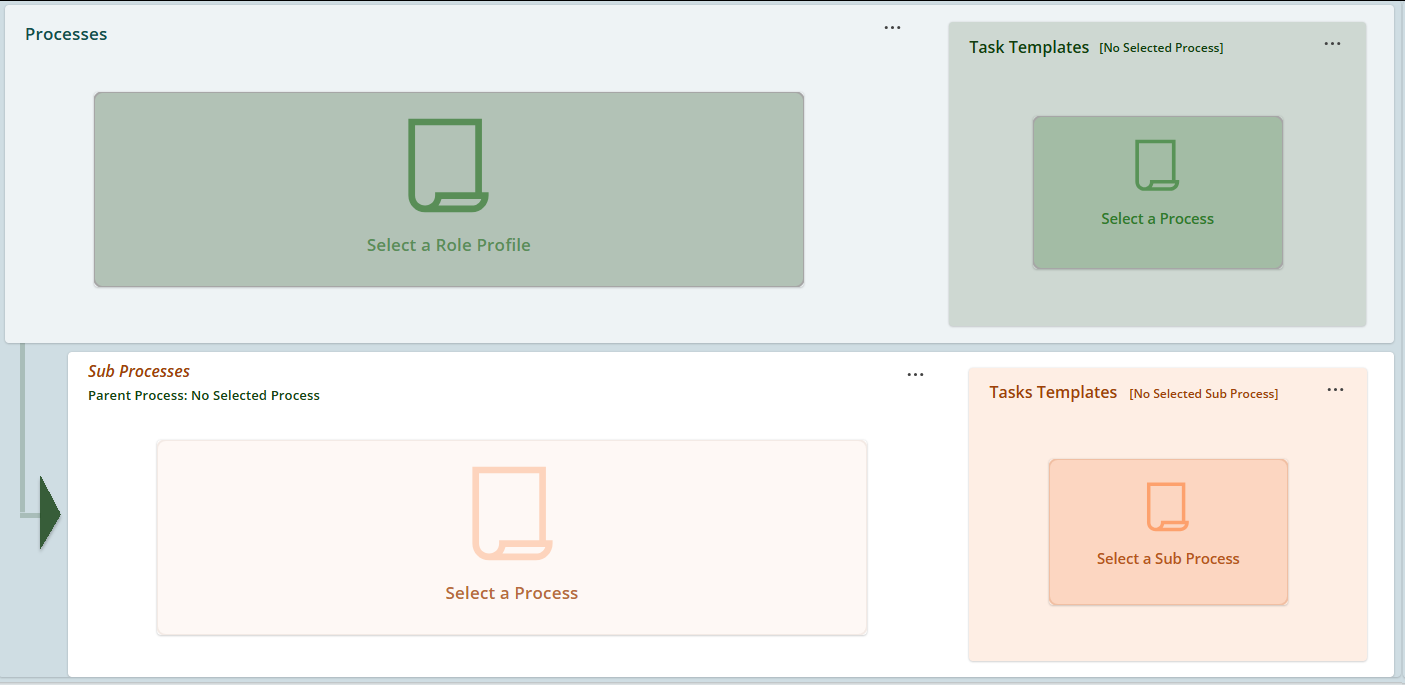
Then on the right side of the screen, you can define your processes and sub-processes.