Table of Contents
Sync Licensing Reporter - Quick Start
 Updated
by Niamh Ferns
Updated
by Niamh Ferns
Overview
The Sync Licensing Reporter solution provides you with a dashboard and a periodic report where you can review your assigned and active licenses in the tenants for you and your clients. To be able to use this solution, you'll need to deploy PowerPlay and to deploy the Sync Licensing Reporter to at least one CustOrg.
Dashboard
The IECB Licensing Reporter dashboard provides MSPs with a centralised view of all their customers' licenses:
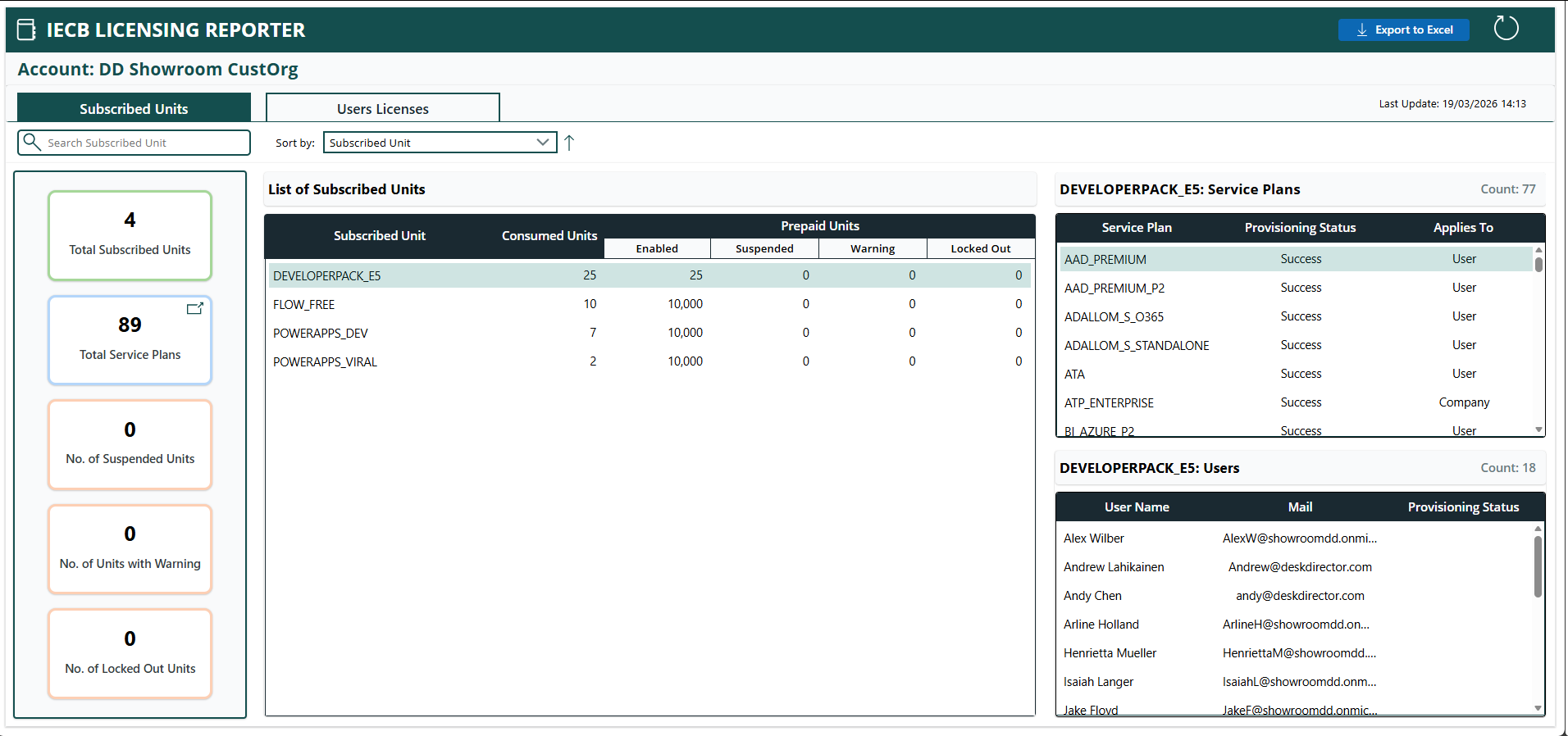
- Subscribed Units: The subscribed units tab will give you a look at all of the licenses for which you currently have subscriptions. Here you can see your totals for your units in various statuses, a full list of your subscribed units with the unit name and how many have been consumed, and a section on the right showing a breakdown of the currently selected license.
- User Licenses: The user licenses tab will give you a look at all of the users you have in your organisation and allows you to view the licenses for each. You'll see your totals, a full list of your users, and then a breakdown of licenses based on the user you have selected.
Periodic Report Email
Requesting a Periodic Report
To receive a periodic report to your email inbox, you'll need to submit a Licensing Reporter request from DeskDirector. By default, this will be under the IECB Sync Solutions category when you try to raise a ticket:
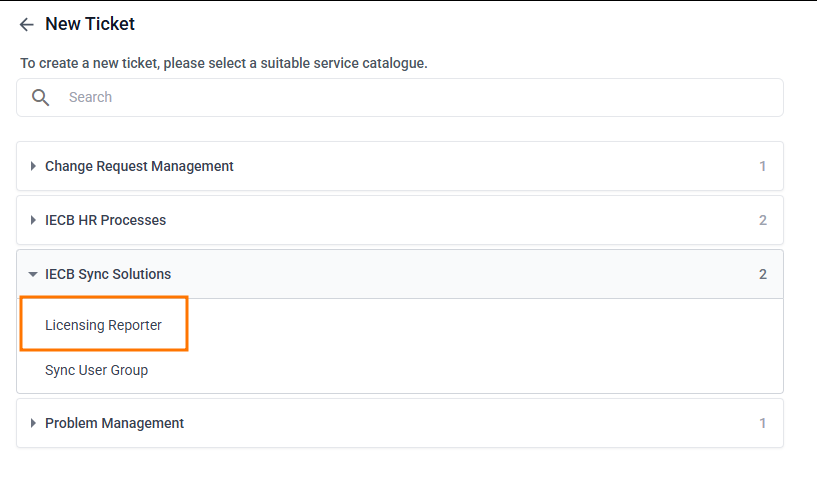
- Select Licensing Reporter to raise a new request
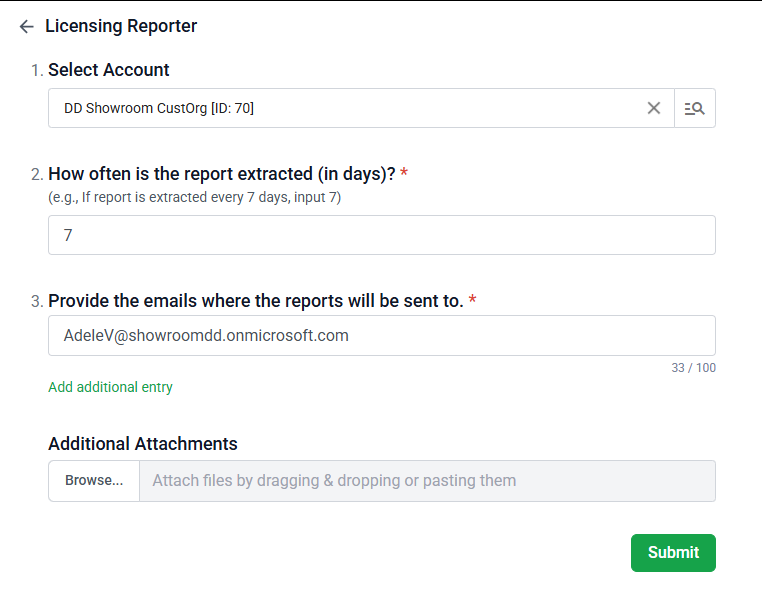
- Select your account, how often you want the report sent through, and who you want it to be sent to, then click Submit:
- After a short time, on the ticket, you'll receive a system update advising that the request is being processed:
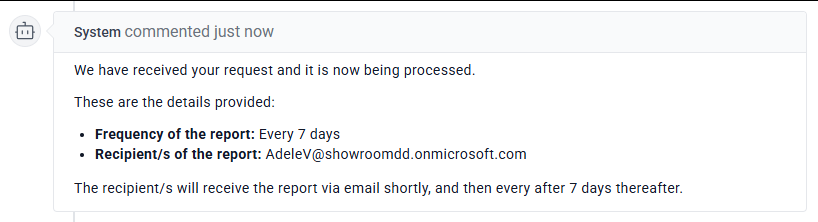
You should now receive a report to your inbox with the required frequency.
Email Report Example
Below, you can find an example of a periodic report email:
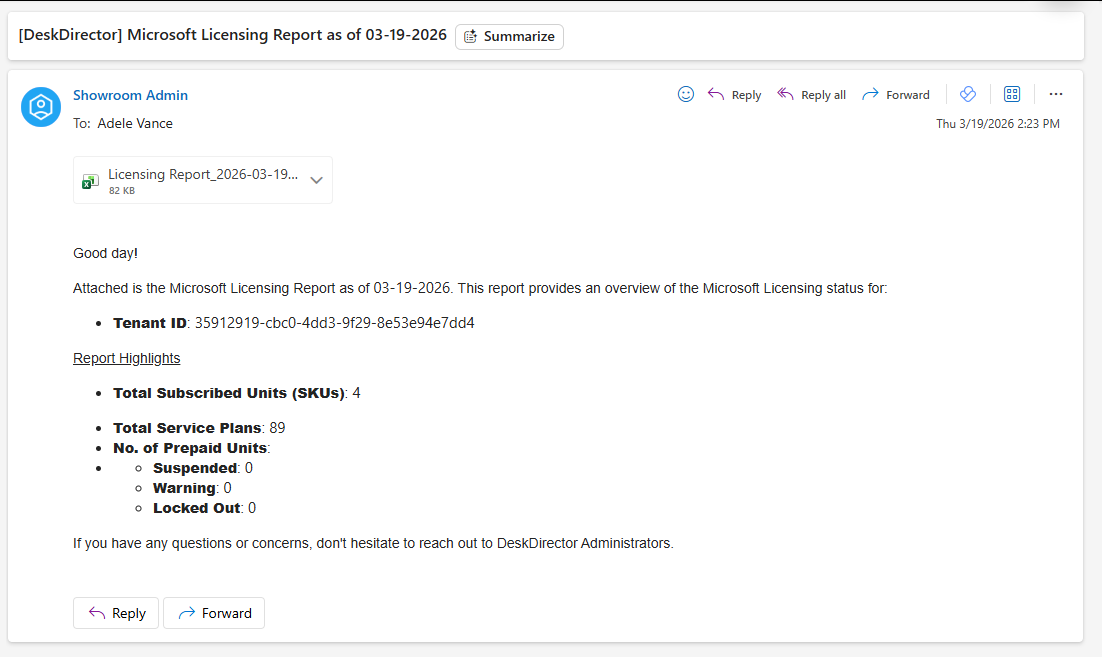
Each email will contain a set of highlights, as well as the report itself in an Excel spreadsheet.
