Table of Contents
Change Management - Quick Start
 Updated
by Niamh Ferns
Updated
by Niamh Ferns
Summary
The Change Management solution provides you with an easy-to-use app and service type to raise, manage, and action your change requests. This ensures that your organisation can easily keep track of potentially breaking changes, reasonably assess the risk of those changes, and then view them as they go through from initial request to completion.
The change management solution will provide you with two main things:
- Service Type: This will allow users to submit change requests and guide them through adding all the required information for a change request.
- PowerApps App: In the app, you can view or create change requests, schedule in CAB (Change Advisory Board) meetings, and configure your change control process.
We'll go through and show you first how to submit a change request in DeskDirector, and then we'll go through the various sections in the change management app.
Submitting a Change Request
As part of the deployment for your change management solution, a service type will have been created in your DeskDirector instance that can be used to submit change requests.
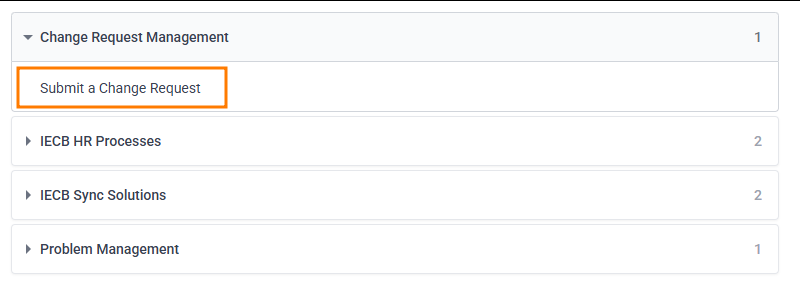
- Open the DeskDirector Client Portal and open the Submit a Change Request service type:
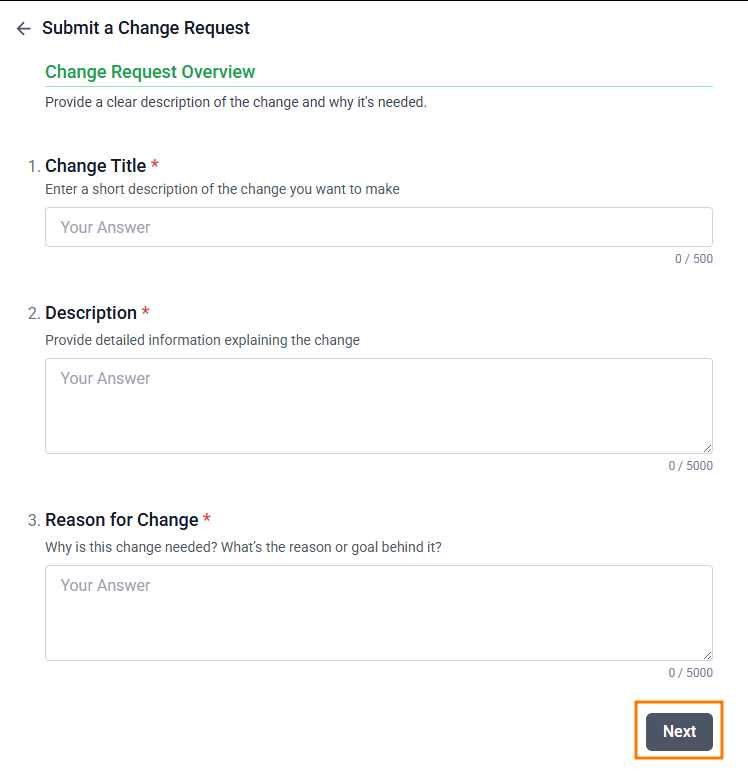
- You'll be presented with a series of pages that guide you through the required information for your change request. Select next to go through each page after adding in details:
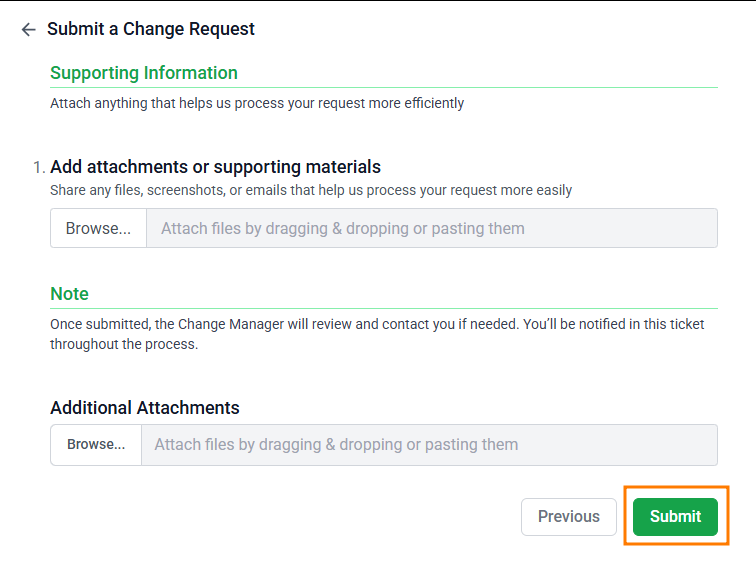
- Finally, attach any relevant files for your change control request and select Submit:
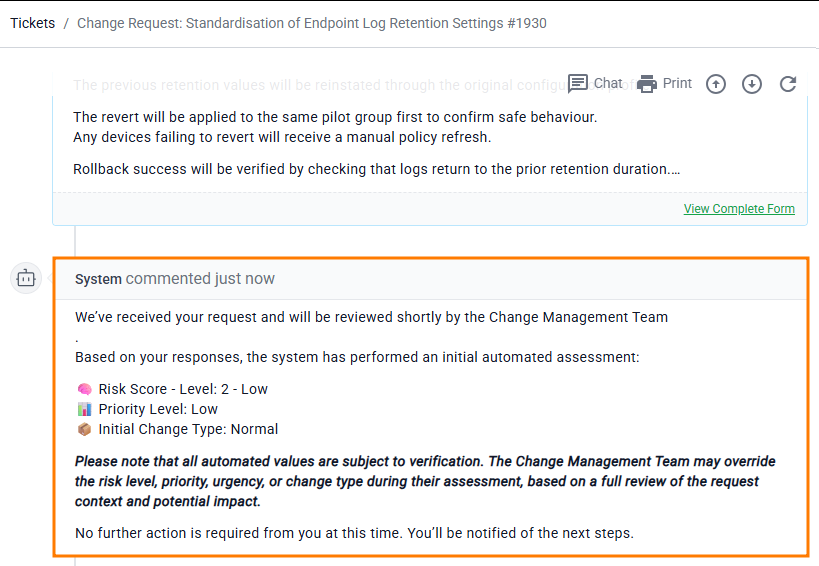
Once your request has been successfully submitted, you'll be provided with a system comment giving an overview of the risk, priority, and change type:
Change Management App
The Change Management app is a centralised dashboard where you can view, action, create, and schedule meetings for your change requests. You'll also have access to several configuration options for your change management process.
Change Request Dashboard
From the landing page on your change management app, you'll have two options for the Change Request Dashboard. We'll go through both of these, starting with the change request list:
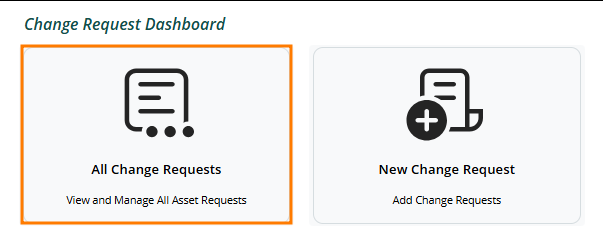
Selecting the All Change Requests option will take you to a dashboard where you can view your current change requests:
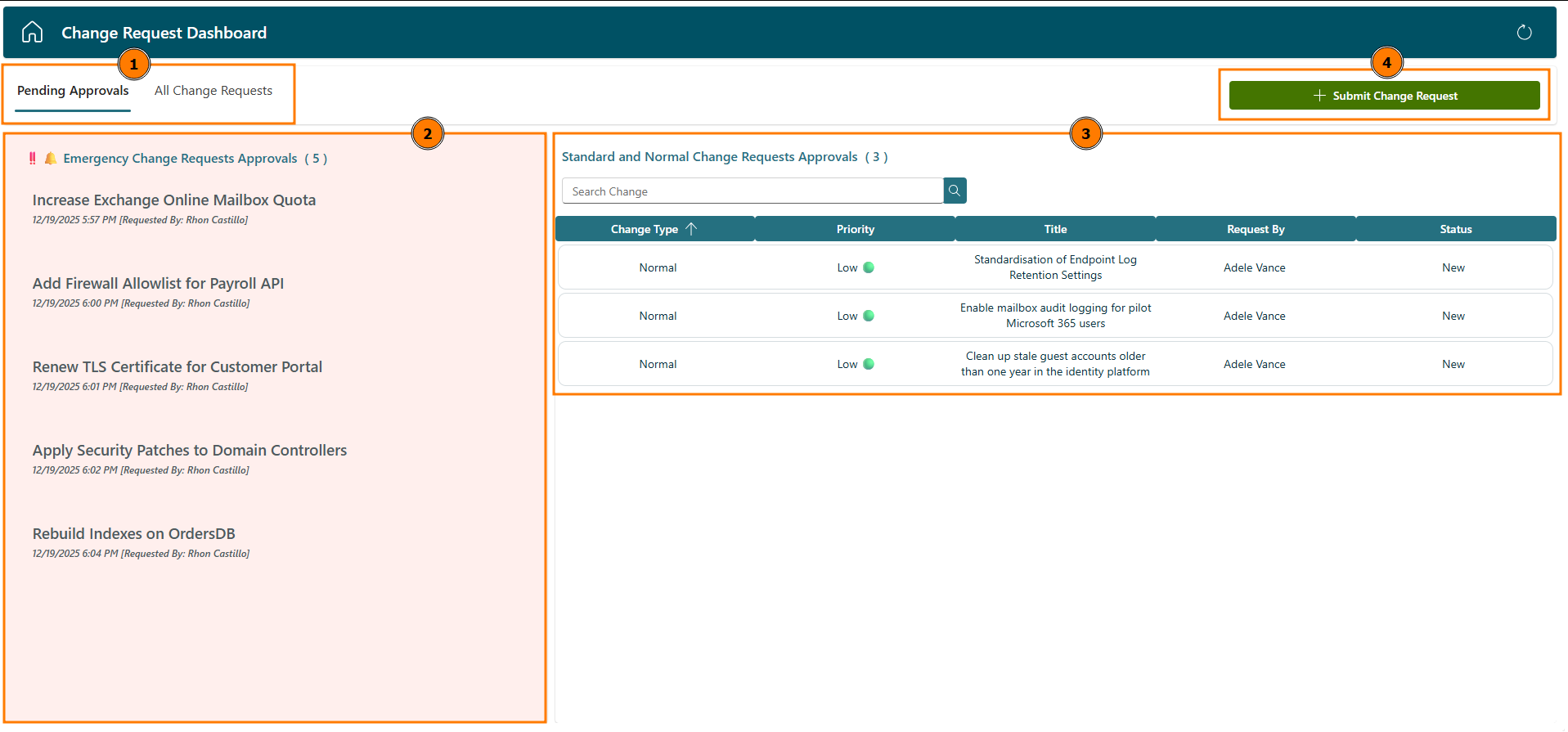
You can:
- Select whether you are viewing all of your change requests or only those that are currently pending approval.
- View a list of your emergency change requests (This list will change based on your choice for section 1.)
- View (and open) all of your change requests. (This list will change based on your choice for section 1.)
- Create a new change request directly from the dashboard.
Change Request View
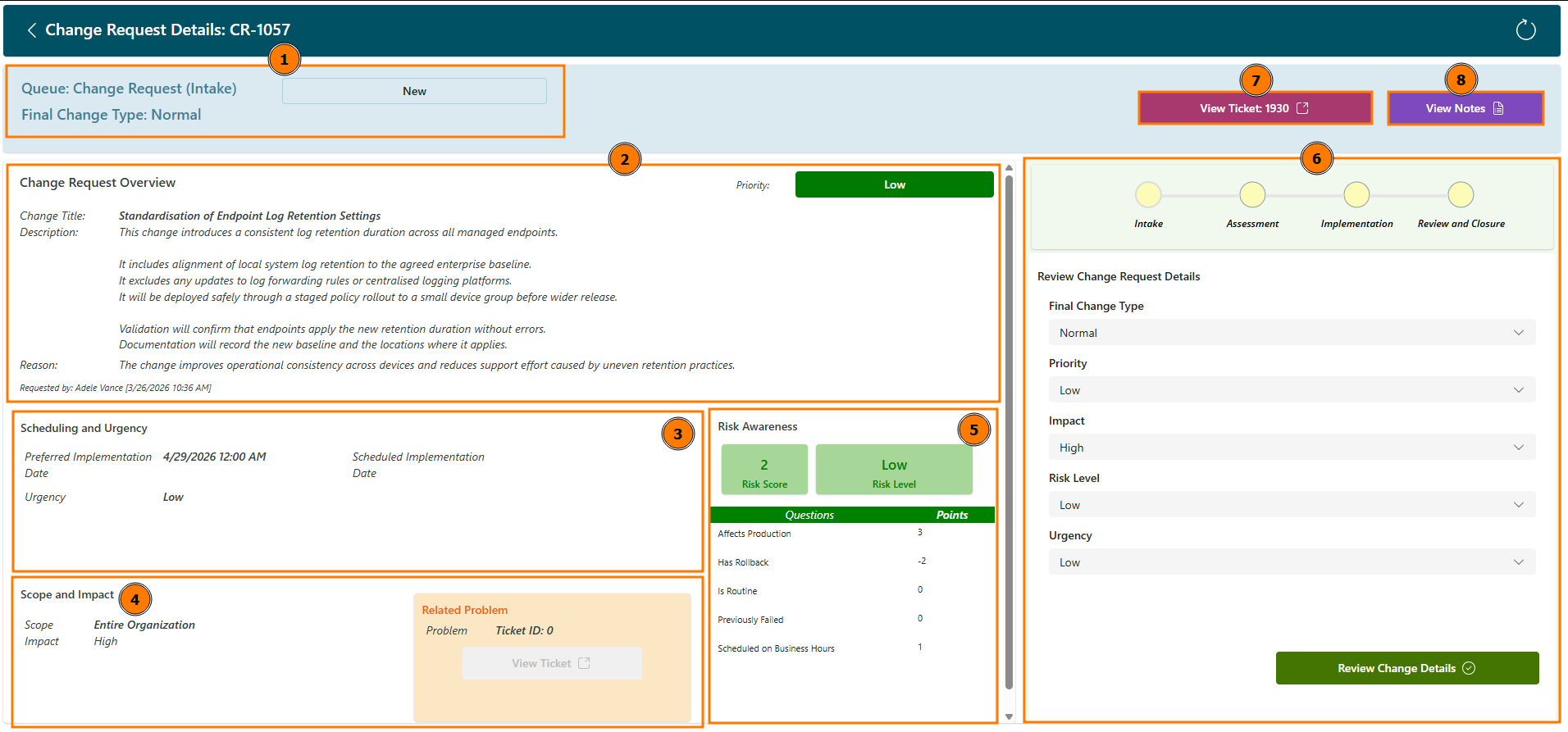
When you select a change request from the main change request list view, you can view specific details for the change request and update things as needed:
- Status: You can view your change request status and type.
- Overview: You can view the details and priority for your change request.
- Scheduling & Urgency: You can view the schedule and urgency for your change request.
- Scope & Impact: You can view the impact, scope, and related issues for your change request.
- Risk Awareness: You can view an overview of the overall risk, including your change request's risk score and a breakdown of the risk score.
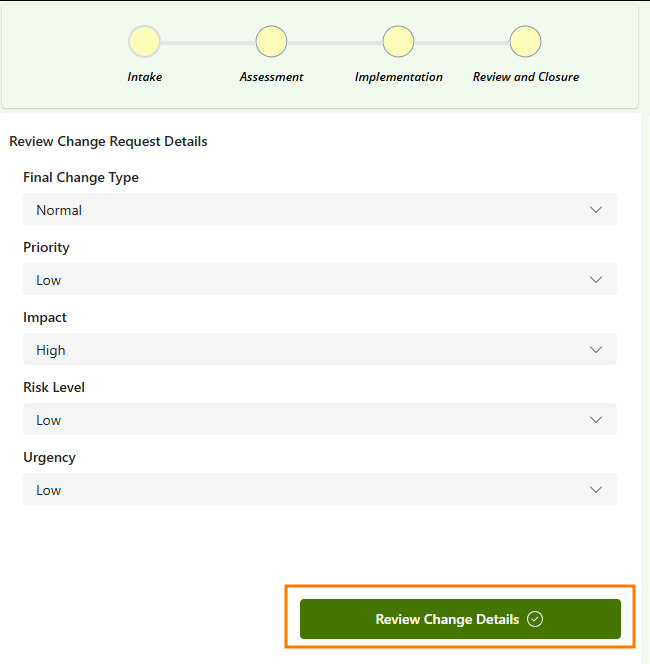
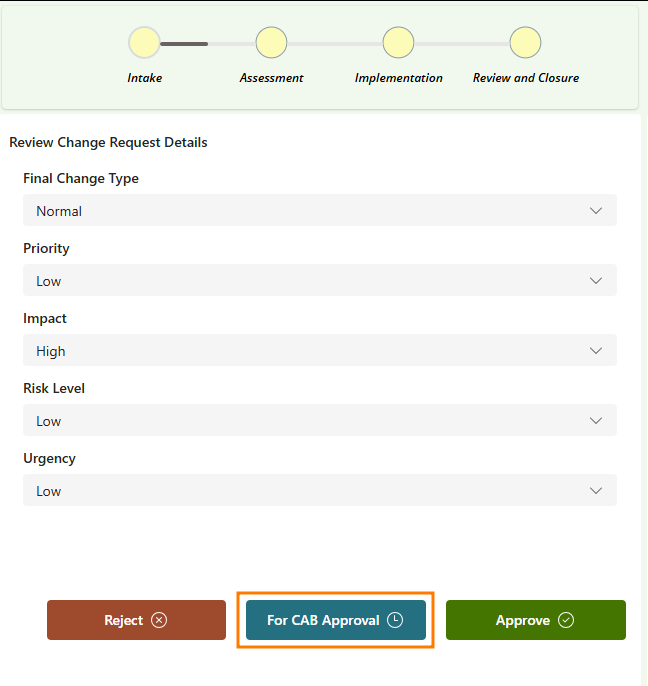
- Change Request Details: You can view and update the details for your change request (in case things change as you go through the process). Once you're happy with these, you can Review Change Details to either Reject, send For CAB Approval, or Approve the change request. (These options will automatically update the status for the ticket in DeskDirector for you.)
- Ticket Link: access the ticket in DeskDirector.
- View Notes: view any notes related to a change request.
CAB Meeting Scheduling - From Change Request
When going through the change request review process, you'll often need to send requests for approval at a CAB meeting. The Change Management solution makes this easy. To send a change request for CAB approval:
- Select a change request that is either in a new or under review status.
- If your request is not yet sent for review, select Review Change Details:
- Select For CAB Approval:
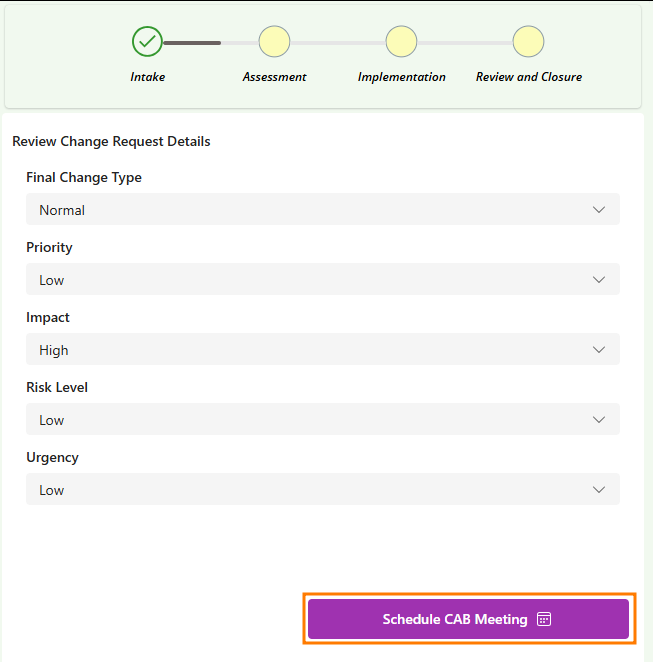
- Select Schedule CAB Meeting:
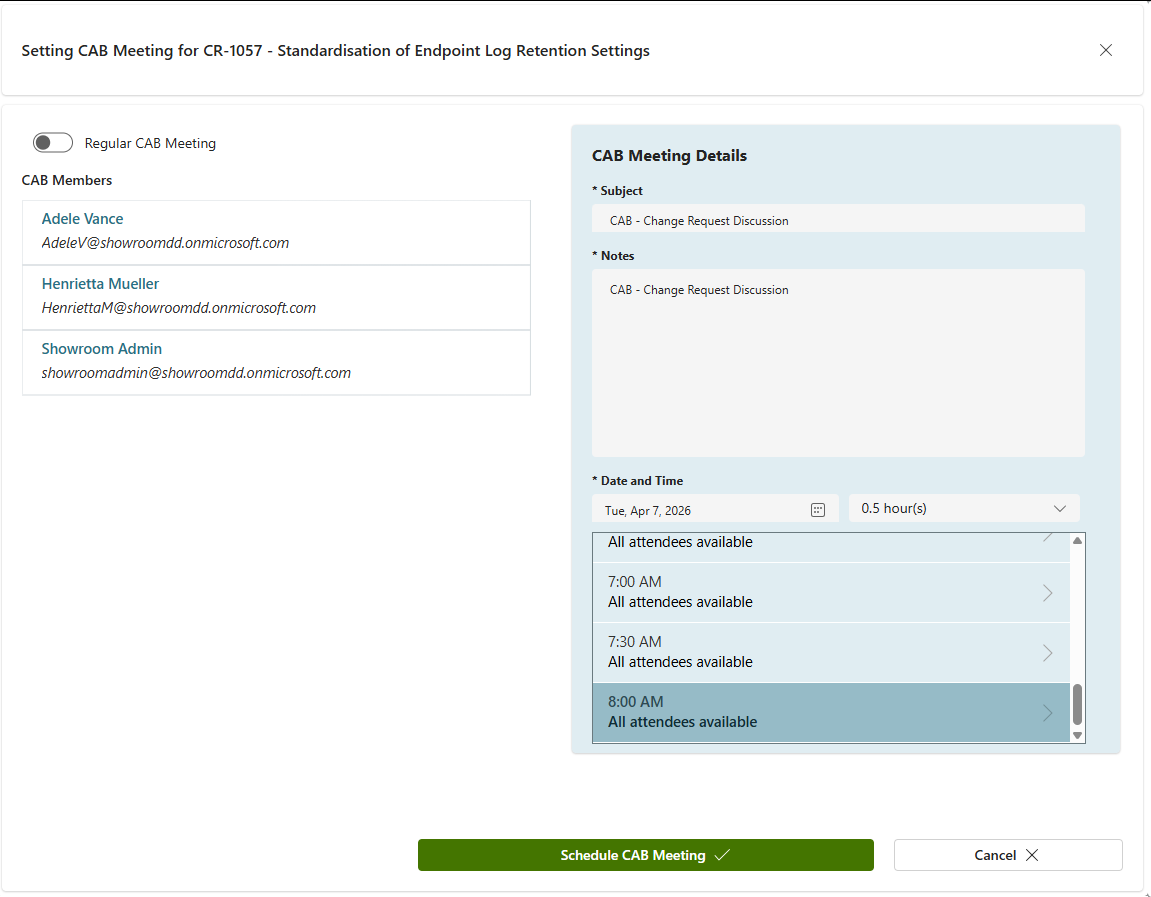
- Select a date and time for your CAB Meeting, and then select Schedule CAB Meeting:
Create a New Change Request
If needed, you start the change creation process via a shortcut in the change management app. To get started, either select New Change Request from the main landing page or select Create Change Request from the Change Request Dashboard:
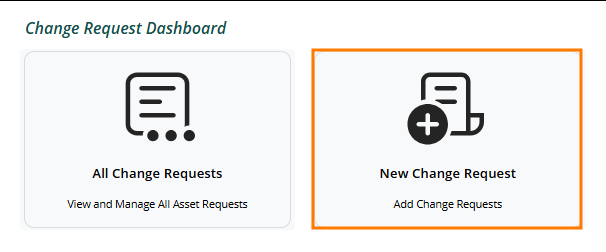
This will take you to DeskDirector, where you can go through the change request form.
Change Management Configuration
CAB Meeting Scheduling - From Admin Configuration
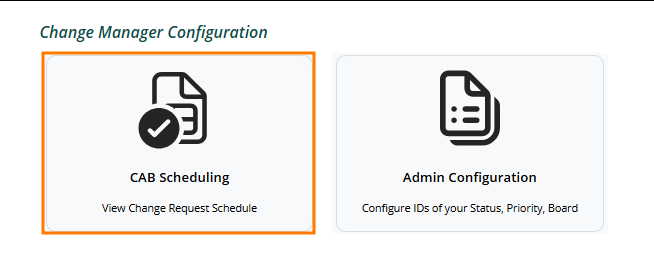
CAB Meetings can be scheduled from the Change Management app. To get started, select CAB Scheduling from the main landing page:
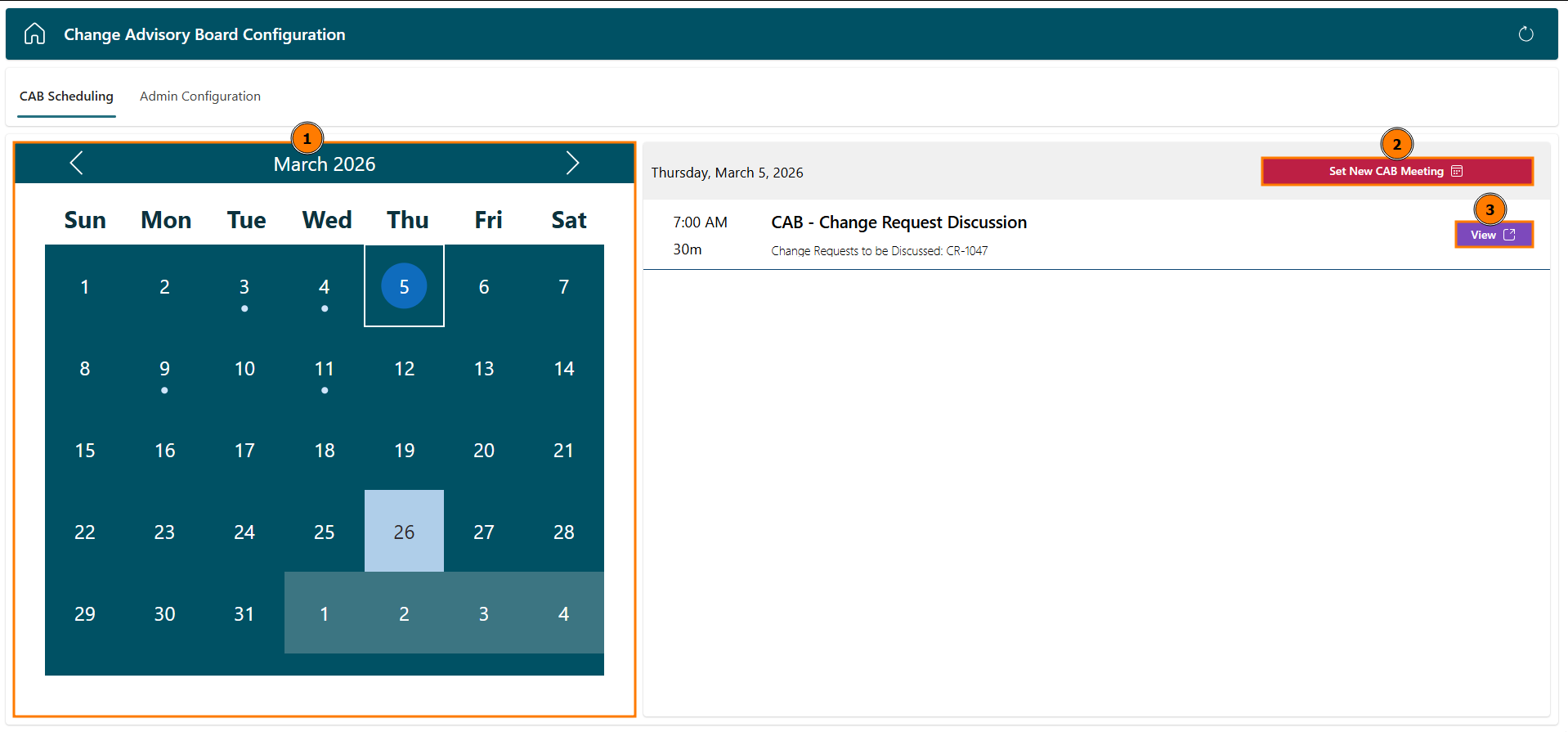
From the CAB Scheduling page, you can:
- CAB Calendar: View which days currently have CAB meetings scheduled. Here you can select a day that you want to view or add meetings to.
- Set New CAB Meeting: Once you've selected a day, you can then create a new CAB Meeting on that day.
- View CAB Meeting: You can open and view any existing CAB meetings for a specific day.
To add discussion points to a meeting, view the cab meeting and select Add:
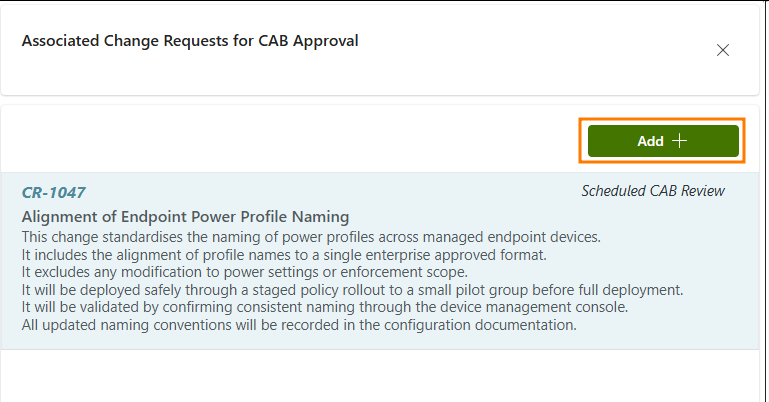
You can then select the change requests you want to add to be discussed during that meeting and click Confirm.
Admin Configuration
To access your admin configuration settings, select Admin Configuration from the main landing page:
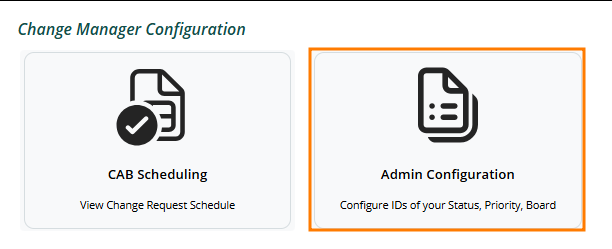
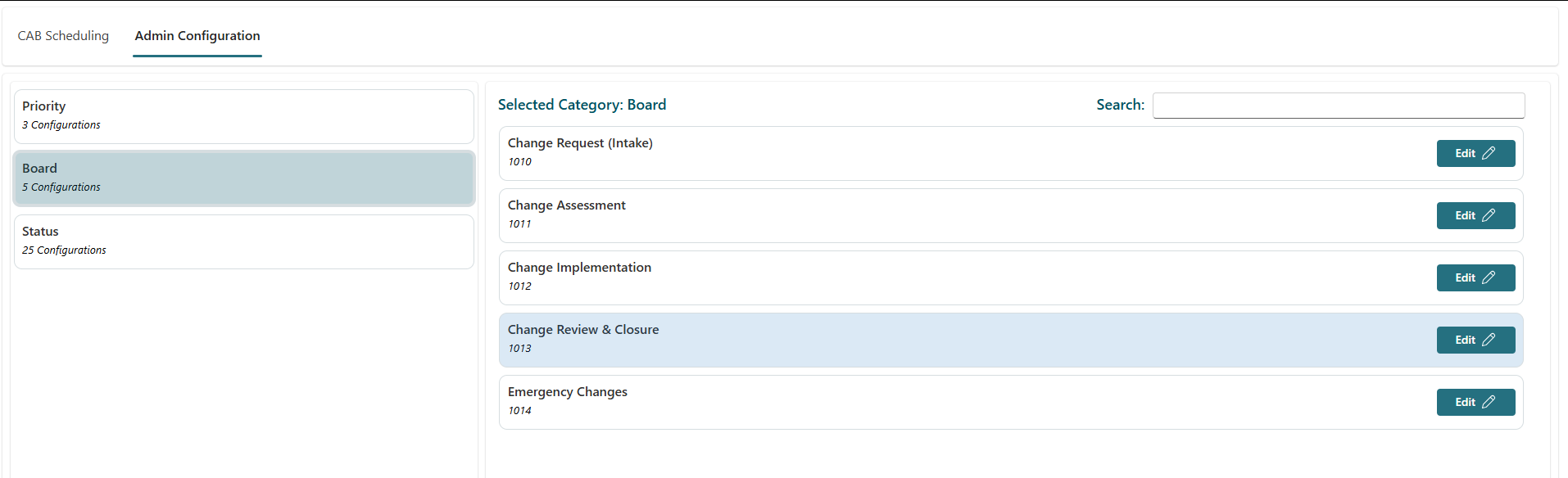
In the admin configuration area, you can configure which priorities, statuses, and boards will apply when going through the change control process: